Customer Comments & Attachments Access — Technical Documentation
Source Document: Download original
1. Overview
This document provides a detailed technical explanation of the extension that enables one-click access to Customer Comments, Customer Links, and Customer Attachments directly from the Service Order page in Microsoft Dynamics 365 Business Central. The customization removes the need to navigate to the Customer Card and significantly improves the workflow for service representatives.
2. Business Requirement
When working on a service order, support agents often need to review customer history, comments, and attachments. In the standard system, these are only accessible through the Customer Card, requiring multiple clicks and interrupting the workflow.
The requirement was to:
- Add a single-click way to view Customer Comments
- Add a single-click way to view Customer Links (URLs or attachments)
- Add a single-click way to view Customer Attachments
- Embed these items directly inside the Sell-to Customer History FactBoxes on the Service Order
3. Technical Architecture
The extension consists of five AL objects:
- Page Extension -- Comment List
- Page Extension -- Comment Sheet
- Page Extension -- Service History Sell-to FactBox
- Page Extension -- Sales History Sell-to FactBox
- Record Link Page -- For handling attachments/links
The architecture adds UI elements, actions, and conditional rendering to expose customer comments and links.
4. Page Extension: Comment List
File: Pag-Ext52003.CommentList.al
This extension modifies the Comment List page so that it can be filtered to display comments related to the Sell-to Customer on a service order. It ensures the page is context-aware: if no customer number is provided, the list does not display records.
5. Page Extension: Comment Sheet
File: Pag-Ext52000.CommentSheet.al
This extension adjusts the comment sheet to support being opened directly from the Service Order. It ensures comments can be viewed in a focused window, and supports filtering based on the current customer.
6. Page: Customer Links (Attachments)
File: Pag52001.RecordLink.al
This extension provides access to the Customer Links table, which contains attachments and URLs.
Key behaviors:
- If no links exist, a user-friendly message is displayed.
- When links are available, clicking them opens the attachment or URL.
- The page is invoked from the FactBoxes.
7. Page Extension: Service History Sell-to FactBox
File: Pag-Ext52001.ServiceHistSelltoFactBox.al
This FactBox extension adds three new visible items:
- Customer Comments (Yes/No)
- Customer Links (List)
- Customer Attachments (List)
Actions and click behaviors are added so that selecting these items opens the appropriate page:
- Clicking "Yes" opens the Comment Sheet or Comment List page.
- Clicking a link item opens the Record Link page.
- Clicking an attachment item opens the corresponding stored file.
8. Page Extension: Sales History Sell-to FactBox
File: Pag-Ext52002.SalesHistSelltoFactBox.al
This page extension mirrors the functionality of the Service History FactBox but is applied to the Sales History FactBox. It ensures that customer comments and links are visible in all areas where Sell-to history is displayed.
9. Functional Workflow
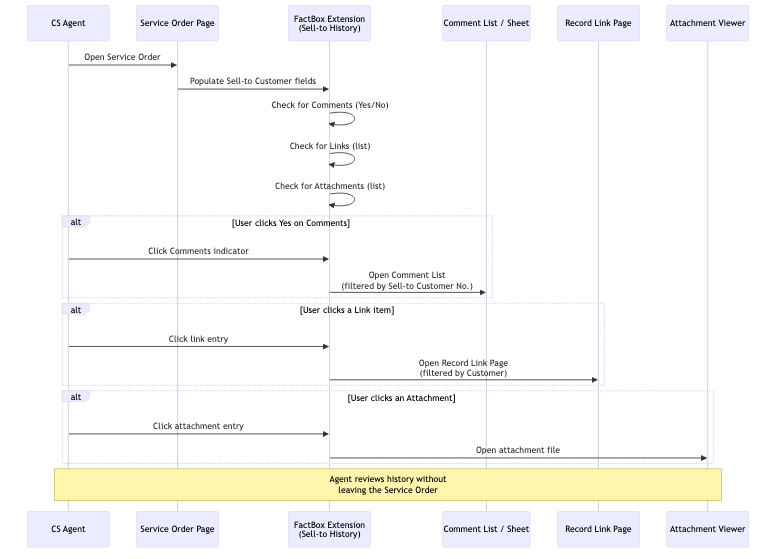
The workflow is as follows:
- User opens a Service Order.
- The Sell-to Customer History FactBox becomes visible.
- The extension populates three key fields:
- Customer Comments
- Customer Links
- Customer Attachments
- Based on availability, the user sees:
- YES / NO for comments
- A clickable list for links
- A clickable list for attachments
- The user clicks any element to open the corresponding data source.
- Agents can now review history instantly without leaving the service order.
10. Testing Recommendations
Recommended testing scenarios:
- Service Orders linked to customers with comments
- Service Orders linked to customers with attachments
- Service Orders with both comments and attachments
- Service Orders with neither
- Clicking "YES" should open the Comment List/Comment Sheet
- Clicking links should open the Record Link page
- Verify attachments open correctly
- Ensure all pages respect Sell-to filtering
11. Deployment Notes
- Publish the extension via VS Code or Admin Center.
- Install using Extension Management.
- No additional configuration is required.
- Users should have permissions to view Comments and Record Links.