Documentation Site — Setup & Administration
This guide covers how to set up the Bestway BC documentation site from scratch, configure the Azure deployment pipeline, manage authentication, and keep the site content current.
Architecture Overview
The documentation site is a static website built with Docusaurus and hosted on Azure Static Web Apps. All access requires Entra ID (Azure AD) authentication — there is no anonymous access.
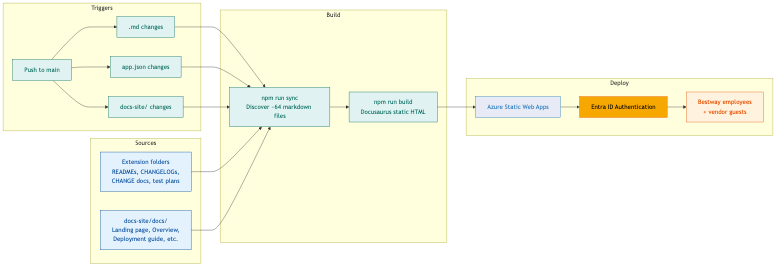
Content lives where developers write it — extension READMEs, CHANGELOGs, CHANGE documents, and test plans stay in their extension folders. The sync script copies them into the Docusaurus content tree at build time. Purpose-written pages (landing page, stakeholder portal, deployment guide) live directly in docs-site/docs/.
Azure Infrastructure Reference
The documentation site runs on the following Azure resources. All resources are in the Bestway Pay-As-You-Go subscription under tenant 823af2fd-2570-49e5-b22c-1614ac645202.
Static Web App
| Property | Value |
|---|---|
| Name | bestway-bc-docs |
| Resource Group | rg-bestway-docs |
| SKU | Standard (required for custom Entra authentication) |
| Region | East US 2 |
| Custom Domain | https://devdocs.bestwaycorp.us |
| Default URL | https://agreeable-river-053a1760f.2.azurestaticapps.net |
| Application Settings | AAD_CLIENT_ID, AAD_CLIENT_SECRET (secret — stored in SWA config, not in source) |
Entra App Registration
| Property | Value |
|---|---|
| Display Name | Bestway BC Docs |
| Application (Client) ID | e0536e61-e0e8-48ac-87d9-4d047c80b81d |
| Sign-in Audience | Single tenant (AzureADMyOrg) |
| Redirect URIs | https://devdocs.bestwaycorp.us/.auth/login/aad/callback and https://agreeable-river-053a1760f.2.azurestaticapps.net/.auth/login/aad/callback |
| Client Secret Expiry | March 2028 — set a calendar reminder to rotate 30 days before |
Azure DevOps Pipeline
| Property | Value |
|---|---|
| Pipeline Name | Deploy Docs Site |
| Organization | BestwayUSA |
| Project | Bestway BC Development |
| Repository | Bestway BC Development |
| YAML Path | docs-site/azure-pipelines.yml |
| Branch Trigger | main |
| Secret Variable | AZURE_STATIC_WEB_APPS_API_TOKEN (deployment token — stored as secret pipeline variable) |
Resource Relationships
Azure DevOps Pipeline ("Deploy Docs Site")
    │  uses AZURE_STATIC_WEB_APPS_API_TOKEN
    ▼
Static Web App (bestway-bc-docs)
    │  authenticates via AAD_CLIENT_ID / AAD_CLIENT_SECRET
    ▼
Entra App Registration (Bestway BC Docs)
    │  validates tokens against tenant 823af2fd-...
    ▼
Bestway Entra Directory (employees + B2B vendor guests)
Initial Azure Setup
1. Create the Azure Static Web App Resource
- Sign in to the Azure Portal
- Create a resource → search for Static Web App → Create
- Configure:
| Setting | Value |
|---|---|
| Subscription | Bestway's Azure subscription |
| Resource Group | Select or create a resource group (e.g., rg-bestway-docs) |
| Name | bestway-bc-docs |
| Plan type | Standard (required for custom Entra authentication) |
| Region | East US (or nearest to Bestway's primary user base) |
| Source | Azure DevOps |
| Organization | Bestway's Azure DevOps organization |
| Project | The project containing the BC Development repository |
| Repository | Bestway BC Development |
| Branch | main |
- Under Build Details:
| Setting | Value |
|---|---|
| Build Presets | Custom |
| App location | docs-site |
| API location | (leave blank) |
| Output location | build |
-
Click Review + create → Create
-
After creation, navigate to the resource and note:
- The URL (e.g.,
https://happy-river-0a1b2c3d4.azurestaticapps.net) - The Deployment token (under Manage deployment token on the Overview page)
- The URL (e.g.,
2. Create the Entra App Registration
- Sign in to the Entra admin center
- Navigate to Identity → Applications → App registrations → New registration
- Configure:
| Setting | Value |
|---|---|
| Name | Bestway BC Docs |
| Supported account types | Accounts in this organizational directory only (Single tenant) |
| Redirect URI | Web — https://<your-swa-domain>/.auth/login/aad/callback |
Replace <your-swa-domain> with the URL from step 1.6 (e.g., https://happy-river-0a1b2c3d4.azurestaticapps.net).
- Click Register
- On the app's Overview page, copy the Application (client) ID
- Navigate to Certificates & secrets → New client secret
- Description:
SWA Auth - Expiry: 24 months (set a calendar reminder to rotate before expiry)
- Copy the Value immediately — it won't be shown again
- Description:
3. Configure Static Web App Application Settings
- In the Azure Portal, navigate to the Static Web App resource (
bestway-bc-docs) - Go to Configuration → Application settings
- Add two settings:
| Name | Value |
|---|---|
AAD_CLIENT_ID | The Application (client) ID from step 2.5 |
AAD_CLIENT_SECRET | The client secret value from step 2.6 |
- Click Save
These values are referenced by staticwebapp.config.json in the repo — the config file uses clientIdSettingName and clientSecretSettingName to point to these application settings rather than hardcoding credentials.
4. Configure the Azure DevOps Pipeline
- In Azure DevOps, navigate to Pipelines → New pipeline
- Select Azure Repos Git → select the Bestway BC Development repository
- Select Existing Azure Pipelines YAML file
- Set the path to
docs-site/azure-pipelines.yml - Click Continue → Variables → New variable:
| Name | Value | Keep this value secret |
|---|---|---|
AZURE_STATIC_WEB_APPS_API_TOKEN | The deployment token from step 1.6 | Yes |
- Click Save → Run
The pipeline will run, build the site, and deploy it to Azure Static Web Apps.
5. Verify the Deployment
- Open the Static Web App URL in an incognito/private browser window
- You should be redirected to the Microsoft login page
- Sign in with a Bestway Entra account
- After authentication, the documentation site should load with the landing page
If authentication fails, check:
- The redirect URI in the Entra app registration matches the SWA URL exactly (including
https://) - Both
AAD_CLIENT_IDandAAD_CLIENT_SECRETare set in the SWA application settings - The
openIdIssuerinstaticwebapp.config.jsonuses the correct tenant ID (823af2fd-2570-49e5-b22c-1614ac645202)
Granting Vendor Access
Vendors access the site through Entra B2B guest accounts.
- In the Entra admin center, navigate to Identity → Users → Invite external user
- Enter the vendor's email address
- Add a personal message explaining what the site is and how to access it
- Click Invite
The vendor will receive an email invitation. After accepting, they can sign in to the documentation site with their own email credentials.
To revoke access, delete the guest user from Entra.
How the Build Pipeline Works
The pipeline is defined in docs-site/azure-pipelines.yml and triggers automatically on pushes to main that modify:
- Any file in
docs-site/ - Any
.mdfile anywhere in the repo - Any
app.jsonfile (version bumps update the Extension Directory page)
Pipeline Steps
| Step | What It Does | Duration |
|---|---|---|
| Checkout | Clones the full repo (with fetchDepth: 0 for git history) | ~10s |
| Install Node.js | Sets up Node.js 20 LTS | ~5s |
| Install dependencies | Runs npm ci in docs-site/ | ~15s |
| Sync content | Runs npm run sync — discovers markdown files, classifies them, injects frontmatter, copies to the Docusaurus content tree | ~5s |
| Build site | Runs npm run build — Docusaurus generates static HTML | ~30s |
| Deploy | Pushes the build/ output to Azure Static Web Apps | ~15s |
Total pipeline duration: approximately 60-90 seconds.
Manual Rebuild
To trigger a rebuild without a code change:
- In Azure DevOps, navigate to Pipelines
- Select the docs site pipeline
- Click Run pipeline → Run
This is useful after converting a Word document to markdown or after making changes that don't trigger the automatic path filters.
Content Management
How Content Gets on the Site
There are two types of content:
Synced content — Markdown files that live in extension folders and are auto-discovered by the sync script. When you add or edit a .md file in any extension folder, the site picks it up on the next build.
| You write... | It appears at... |
|---|---|
{ext}/README.md | /extensions/{slug}/ |
{ext}/docs/CHANGELOG.md | /extensions/{slug}/changelog |
{ext}/docs/CHANGE-v*.md | /extensions/{slug}/changes/{version} |
{ext}/test/README.md | /extensions/{slug}/testing/ |
{ext}/docs/*.md | /extensions/{slug}/docs/{name} |
docs/STATUS-UPDATE-*.md | /stakeholders/status-updates/{name} |
docs/CONTRIBUTING.md | /development/contribution-guidelines |
tools/README.md | /tooling/test-plan-library |
Purpose-written content — Pages authored directly in docs-site/docs/ that don't exist elsewhere in the repo. These are committed to git normally.
| Page | File |
|---|---|
| Landing page | docs-site/docs/home/index.md |
| Stakeholder overview | docs-site/docs/stakeholders/overview.md |
| Extension directory | docs-site/docs/stakeholders/extension-directory.md |
| Recent changes | docs-site/docs/stakeholders/recent-changes.md |
| Deployment guide | docs-site/docs/development/deployment-guide.md |
| This page | docs-site/docs/development/docs-site-admin.md |
Adding a New Extension's Docs
When a new extension is added to the repo:
- Create a
README.mdin the extension's root folder — this becomes the extension's overview page - Create a
docs/CHANGELOG.mdif the extension has releases - Push to
main— the sync script auto-discovers the new files
The extension will appear in the sidebar automatically. To control its display name, sidebar position, or group it with related extensions, edit docs-site/content-map.yaml.
Customizing the Sidebar
The sidebar is controlled by docs-site/content-map.yaml. Three types of customization:
Grouping related extensions:
groups:
  - label: "Nextiva Integration"
    slug: nextiva-integration
    description: "Phone and email integration with Nextiva"
    extensions:
      - "Cambay Solutions_BC Dialing Application"
      - "BCDialingAzure"
Overriding display names:
labels:
  "Cambay Solutions_BC Dialing Application": "BC Dialing Application"
Controlling order:
order:
  extensions:
    - "BestwayUSA"
    - "nextiva-integration"
    - "Service Order Lockout"
Extensions not listed in the order section appear alphabetically after the listed ones.
Updating the Extension Directory
The Extension Directory page (docs-site/docs/stakeholders/extension-directory.md) lists all extensions with their current versions. When an extension version is bumped in app.json, update the version in this page as well.
Updating Recent Changes
The Recent Changes page (docs-site/docs/stakeholders/recent-changes.md) is manually maintained. When a new version of an extension is released, add an entry at the top of the page with the version, date, and key changes (pulled from the extension's CHANGELOG).
Local Development
To preview the site locally before pushing:
cd docs-site
npm install        # first time only
npm run dev        # dev server + file watcher at http://localhost:3000
npm run dev starts two things:
- The Docusaurus dev server with hot reload
- A file watcher that monitors all markdown and
app.jsonfiles across the repo
When you edit any markdown file — whether it's a purpose-written page in docs-site/docs/ or a synced file like an extension README or CHANGELOG — the watcher detects the change, re-runs the sync script, and the browser updates automatically.
| Command | Behavior |
|---|---|
npm run dev | Dev server + file watcher (recommended for authoring) |
npm start | Dev server only — syncs once at startup, no live watching |
npm run watch | File watcher only — useful if the dev server is already running |
To build the production site locally:
cd docs-site
npm run build
npx serve build    # serves at http://localhost:3000
Troubleshooting
Build fails with MDX parsing errors
The Docusaurus config uses markdown.format: 'md' to treat all .md files as standard CommonMark instead of MDX. If a synced markdown file contains JSX-like syntax ({variables}, <angle brackets>, etc.), this setting prevents parsing errors. If you need MDX features (React components), use the .mdx extension for that specific file.
Sync script reports "Unclassified" files
The sync script classifies files by path pattern. If a markdown file in the repo doesn't match any classification rule, it's logged as unclassified and skipped. To fix: either move the file to a recognized location or add a new classification rule to docs-site/scripts/sync-content.js.
Authentication redirect loop
If the site redirects to login repeatedly without loading:
- Verify
AAD_CLIENT_IDandAAD_CLIENT_SECRETin the SWA application settings - Verify the redirect URI in the Entra app registration matches the SWA URL
- Check that the client secret hasn't expired
- Clear browser cookies for the SWA domain
Pipeline fails at "Deploy to Azure Static Web Apps"
The deployment token may have been rotated. Regenerate it from the SWA resource in the Azure Portal (Manage deployment token) and update the AZURE_STATIC_WEB_APPS_API_TOKEN pipeline variable in Azure DevOps.
Search returns no results
The search index is built at build time by the @easyops-cn/docusaurus-search-local plugin. If search returns nothing:
- Verify
search-index.jsonexists in thebuild/output - Try a full rebuild (
npm run buildfrom scratch) - Check that the search plugin is configured in
docusaurus.config.js
Key Files Reference
| File | Purpose |
|---|---|
docs-site/docusaurus.config.js | Site configuration — title, theme, navbar, search, markdown format |
docs-site/sidebars.js | Sidebar structure — 4 named sidebars (stakeholders, extensions, development, tooling) |
docs-site/content-map.yaml | Sidebar customization — groups, labels, order, exclusions |
docs-site/scripts/sync-content.js | Content discovery and sync engine |
docs-site/staticwebapp.config.json | Azure Static Web Apps auth configuration |
docs-site/azure-pipelines.yml | Azure DevOps CI/CD pipeline |
docs-site/src/css/custom.css | Theme overrides — Roboto font, Bestway navy/blue colors |
docs-site/src/components/UatTestRunner/ | Interactive UAT test runner React component |
docs-site/src/data/extensions.json | Auto-generated extension metadata (from sync script) |
Client Secret Rotation
The Entra app registration client secret expires after the period set during creation (default: 24 months). To rotate:
- In the Entra admin center, navigate to the
Bestway BC Docsapp registration - Go to Certificates & secrets → New client secret
- Create a new secret, copy the value
- In the Azure Portal, update the
AAD_CLIENT_SECRETapplication setting on the Static Web App resource - Delete the old secret from the Entra app registration
Set a calendar reminder for 30 days before expiry.